
You just tried to open a video and it won’t play. This happens more often than you think; a phone switch-off during recording, a video file gets cut off during transfer, or an SD card through error message. This doesn’t mean your video has gone. You just need a right online video repair service or tool to repair it. In most cases, online services do the job as described.
The tools mentioned below all work inside your web browser. You don’t need to download and install anything on your machine. You just upload the corrupt video file and rest job will be performed by your chosen service. After the successful repair, download the repaired file and enjoy your favorite moments. Below, I walk through eight of these video repair services, how to actually use each one step by step, and what’s good and not-so-good about them.
Quick Comparison Table
| Service | Free | Free File Count | Signup | Uploaded Video Deleted? | Preview Before Download? | Tech Support | Desktop Version? |
|---|---|---|---|---|---|---|---|
| Stellar Online Video Repair | Yes | 1 file | Yes | After 24 hours | Yes | Yes | Yes |
| 4DDiG Online Video Repair | Yes | 3 Files | No | No Mentioned | Yes | No Mentioned | Yes |
| Repairit Online Video Repair | Yes | 1 file | No | No Mentioned | Yes | No Mentioned | Yes |
| Fix.Video | No | No | No | After 24 hours | Yes | For Premium Plan | No |
| EaseUS Online Video Repair | Yes | 1 file | No | No Mentioned | Yes | No | Yes |
1. Stellar Online Video Repair
Stellar has been around for 3 decades in the data recovery industry and it’s online video repair is performing same way. You just need an account to try it, and your very first video gets repaired for free. It supports multiple video formats like MP4, MOV, AVI, MKV, WMV, FLV, WEBM, and even HEVC footage from newer phones. What really stands out is it shows you a preview of your corrupt video before prompting for any registration or purchase so you’re never paying blind. If your video is corrupt due to power cut, bad file transfer, or glitchy SD card then Stellar Video repair is the best option to start.
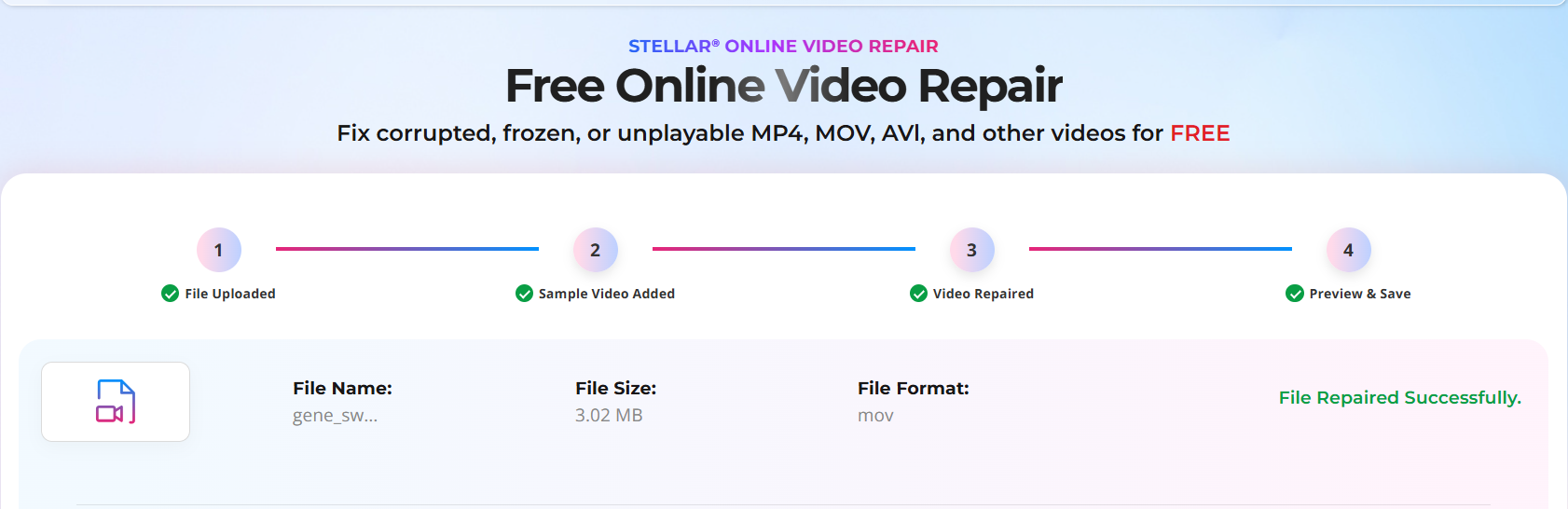
How to Fix Corrupt Video using Stellar?
- Open repair.stellarinfo.com in your browser.
- Click the upload button and choose your corrupt video from your computer or phone.
- Click “Repair” and wait. Repair process usually takes a few minutes to complete the repairing of selected file.
- See the preview of your video that will show up in your browser.
- If preview looks right, download it and enjoy your memory.
What’s Good about Stellar Video Repair
- First video repair is completely free.
- Works with almost any video format you can think of.
- Deletes your video from their server automatically once it’s done
- You get to see the result before paying anything
What’s not so great
- 100MB isn’t much if your video is long or high-resolution
- Getting the complete, full-quality file back means paying
- Even the paid plan tops out at 5GB per file
2. 4DDiG Online Video Repair
4DDiG is a brand of Tenorshare. Its online video repair tool is aimed help people who run into their problems with phone or camera footage. It has been developed as simple as these things get: no account creation, no sign-up form, nothing to download, no credit card required just an upload section and a repair button. Behind the scenes it scans the video file, figures out what part of the structure is broken, and rebuilds it automatically, usually within a couple of minutes. It works well for shorter clips and smaller file sizes.
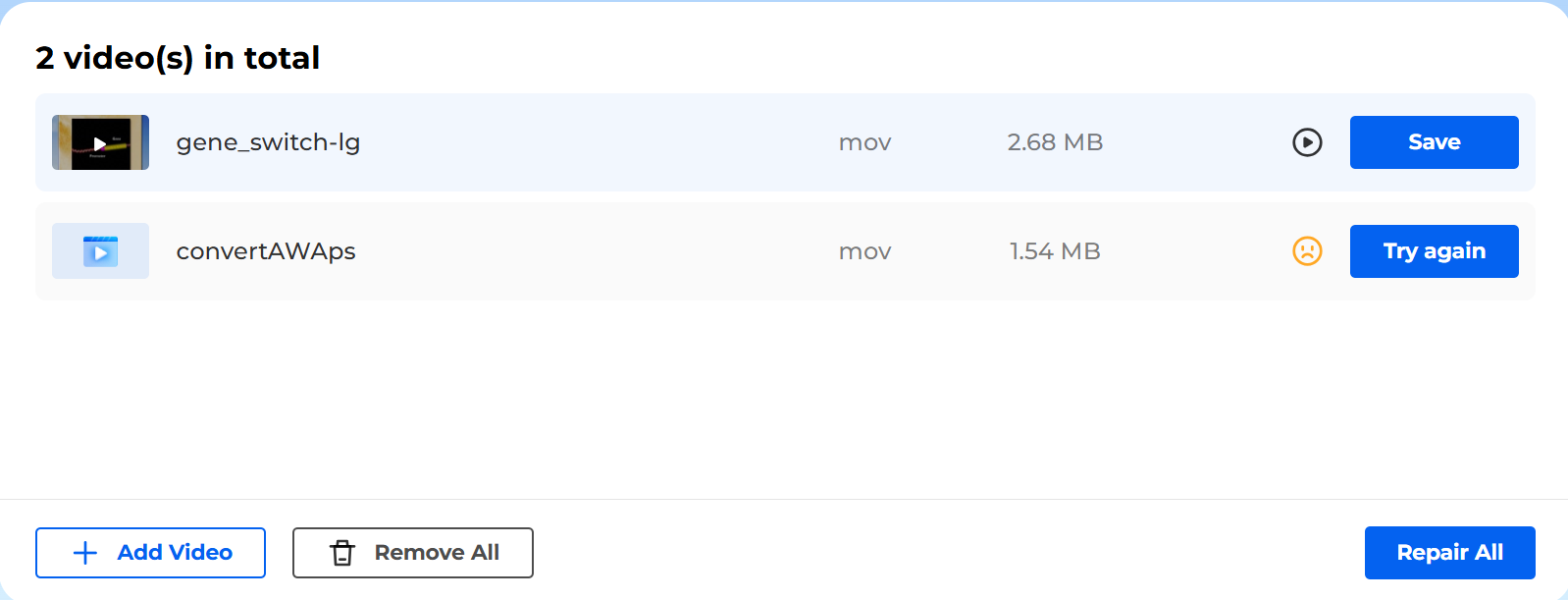
How to Fix Corrupt Video using 4DDiG?
- Open 4ddig.tenorshare.com.
- Upload your damaged video file.
- Press the repair button.
- Give it a moment while it scans through the file and rebuilds what’s missing.
- Preview the repaired video right there on the page itself and if satisfy with result, save it at desired location.
What’s good about 4DDiG
- No cost for basic repairs.
- Nothing to install, nothing to sign up.
- A desktop version exists if you ever need something more powerful.
What’s not so great
- Works best on smaller files, not huge 4K recordings
- Fewer formats supported than what you’d get with the desktop app
- Can repair 3 files only in a day.
3. Repairit Online Video Repair
Repairit Online Video Repair has been developed by Wondershare, a known name in AI-powered creative software development. GUI of this online video repair tool is very simple, it just take little effort to select and upload files. There is no settings menu to figure out, no technical terms to understand, just an upload box and a progress bar. It is clearly designed with keeping beginners in mind, which makes it a solid pick if you’ve genuinely looking for repairing your video without a learning curve. The free version caps out around 50MB, which is enough for shorter clips but tight if you’re dealing with longer 4K recordings.
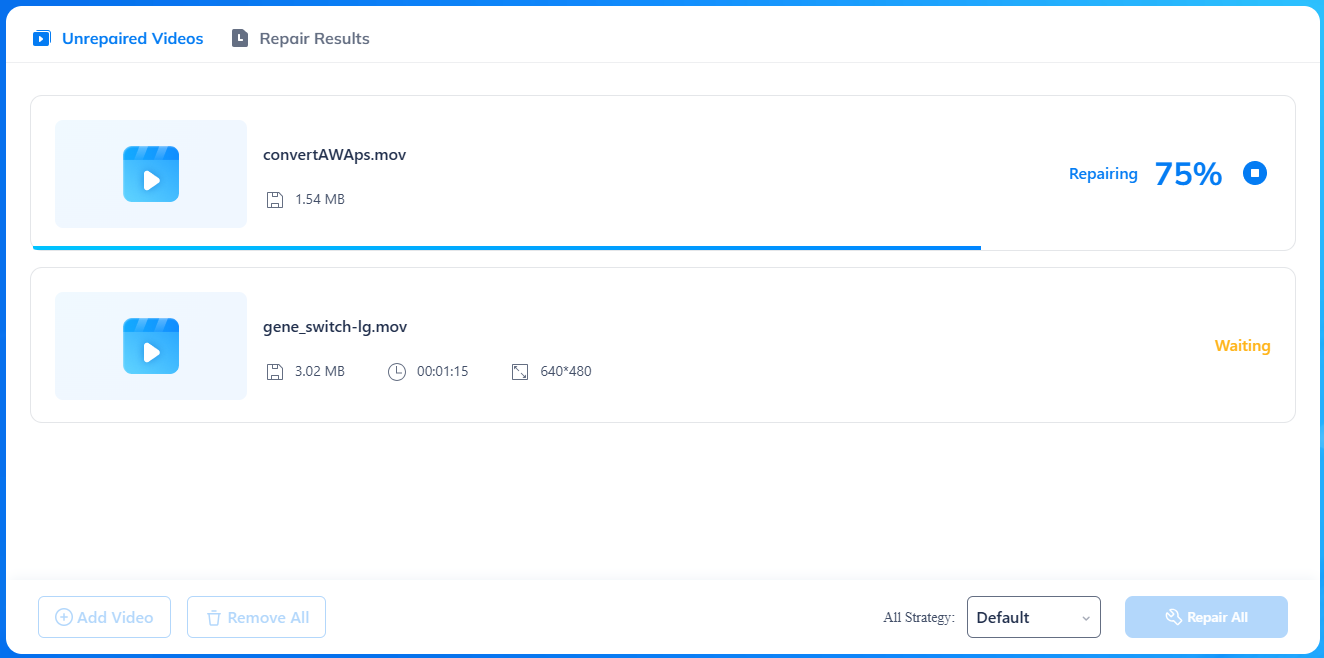
How to Fix Corrupt Video using Repairit?
- Go to Wondershare online video repair page.
- Drag your corrupt video into the upload box (or click on ‘Add’ button to browse for it).
- Let it checks the file and fixes what it can automatically.
- Watch the preview once it’s done.
- Save the repaired file to your device.
What’s good about Repairit
- Free and works right in your browser.
- Works whether you’re on a phone, Mac, or PC.
- Shows you the fixed video before you save it.
What’s not so great
- 50MB fills up fast with modern phone video
- Bigger files mean switching to their paid desktop software
- Not always reliable on unusual or heavily damaged files
4. Fix.Video
Fix.Video takes a different approach than most of the others on this list. Instead of just guessing at what your file should look like, it asks you for a second video (reference video), one that still plays fine, ideally recorded on the exact same camera with the same settings. It sounds like more hassle upfront, but in practice it tends to produce noticeably better results, especially for tricky cases like crash footage from a dashcam or a dropped drone.
How to Fix Corrupt Video using Fix.Video?
- Go to [[H]]fix.video[[/H]] and upload your corrupted video file.
- Also upload a working video from the same camera or phone, with a similar resolution and frame rate, if you have one.
- Submit both files and let their system process the file.
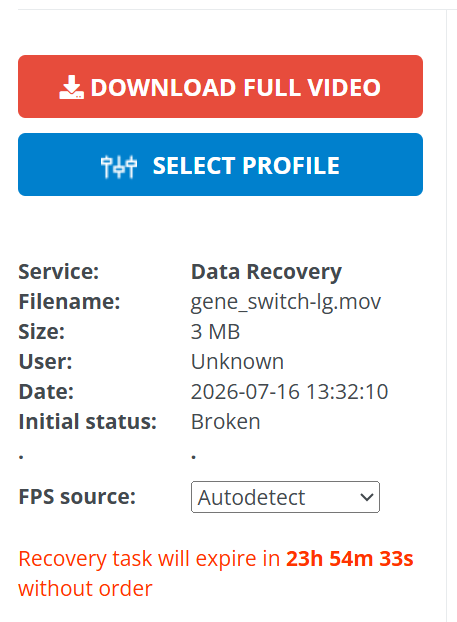
- Download and see the preview of your repaired file using ‘Small Preview’ option.
- Pay the amount and download the video.
What’s good about Fix.Video
- Fully automatic once you upload the corrupt files.
- Works with footage from most well-known camera brands.
What’s not so great
- You’ll need to pay to get the repaired video.
- Only one video at a time.
- Reference file required for each repair.
5. EaseUS Online Video Repair
EaseUS is a name a lot of people already recognize from data recovery software, and their online video repair tool carries the same reputation into a browser-based format. It works by running an algorithm over your file to spot exactly where the structure is broken — things like a damaged header, missing metadata, or a corrupted index — and then filling those gaps back in without touching the actual footage itself. It supports a good spread of formats, including MP4, MOV, AVI, MKV, M2TS, and 3GP, which covers most everyday cameras and phones. This tool tends to shine on minor to moderate corruption, like a file that got interrupted during a transfer or an SD card that didn’t eject properly. Severely damaged videos, though, are more of a stretch for it, and you’ll likely need to try their desktop software if the online version comes back empty-handed. As with most tools here, the preview is free, and the full download requires payment.
How to Fix Corrupt Video using EaseUS?
- Visit easeus.com and find their online video repair tool.
- Upload your MP4, MOV, AVI, MKV, M2TS, or 3GP file.
- Start the repair and let the algorithm do its work.
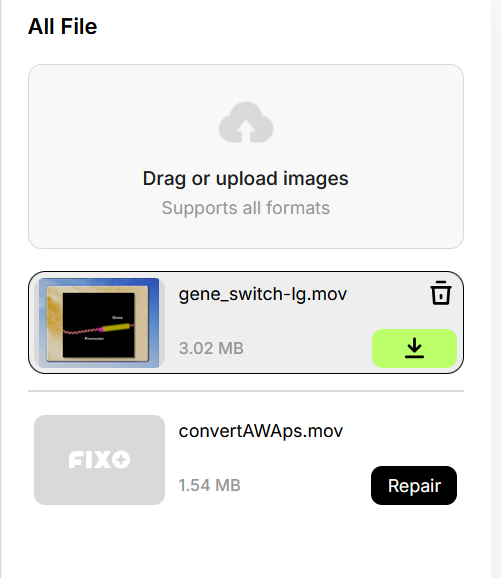
- Preview the result directly in your browser.
- Check your email for a download link or code.
- Pay if you want the full, unlocked version, then download.
What’s good about EaseUS
- Automatically detects and fixes common problems
- Supports a good range of everyday video formats
- Simple enough that you don’t need any prior experience
What’s not so great
- Doesn’t handle severely damaged files very well
- The complete download isn’t free
- Can take a while if your file is large
Frequently Asked Questions
Is it safe to upload my video to an online repair site?
For the most part, yes, as long as you’re using a well-known service. Most of these tools encrypt your file while it’s uploading, process it on a private server, and delete it automatically once the repair is done. If your video contains anything sensitive, though, a desktop video repair tool that never leaves your device is the safer bet.
Can I repair a video for free?
Yes, you can repair at least one file at no cost. The catch is usually a size limit, somewhere between 50MB and 100MB on most free plans.
Does repairing a video reduce its quality?
No, not any tool can reduce the quality of your video. A real repair tool like Stellar, fix.video fixes the file’s structure only without re-encoding or compressing the footage. Your resolution, frame rate, and bitrate should come out the same as before.
What is a reference or sample video file?
It is a working video, ideally shot on the same camera with the same settings as your damaged one. Some tools use it to figure out exactly how your device encodes video, which helps them rebuild the broken file more accurately.
Can Video repair tools fix a video with no sound?
Yes, this is one of the most common issues these services are built to handle, along with black screens, stuttering playback, and out-of-sync audio.
Can I repair a corrupted video from my phone without installing an app?
Yes. Every tool on this list works entirely through your phone or computer’s web browser, so there’s nothing to download or install.
What to do if the online tool can’t fix my video?
It happens, especially with severe corruption or unusual file formats. In that case, most companies point you toward their paid desktop version, which uses more processing power and deeper repair tools than a browser-based service can offer.